
Set up a countdown (promotion) timer <> Victory
Add a countdown (promotion) timer as a banner to the page.
Please add the Banner section to the page, enter the "Wide media" block, scroll down through the settings until the Countdown timer block, and enable it. Then set the time when the promotion ends.

Add a promotion timer to the individual product
Step 1: Create a product metafield
Navigate to the Admin -> Settings -> Metafields and metaobjects -> Products, click on "Add definition".

Create a metafield with the following parameters:
| Name: | Any preferred name (e.g., Promo timer) |
| Key: | custom.promo_timer_date |
| Type: | One / Date and time |
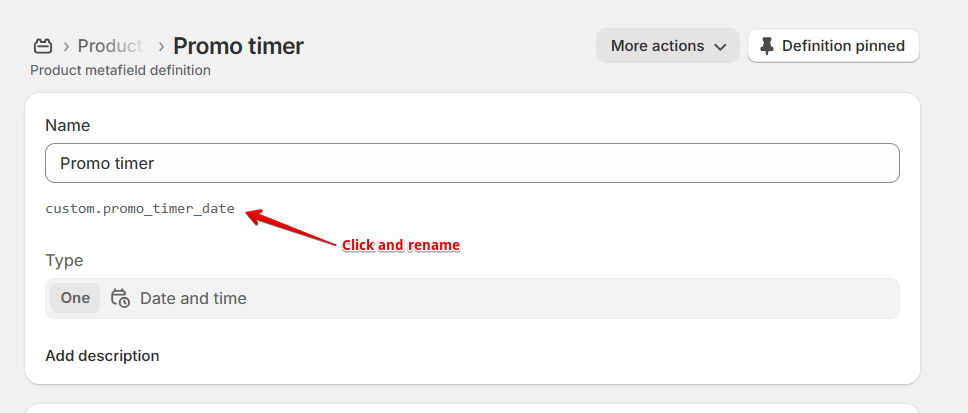
Step 2: Add the time.
Navigate to the Product in the admin panel, scroll down to the Metafields section, and set the date when the promotion ends.

Step 3: Add the block to the product template
Go to the theme editor -> Product template, click the "Add block", and add the Sale timer block.

If you have many products with a promotion, you can add the promotion end date to the metafield for all products at once, in one place.
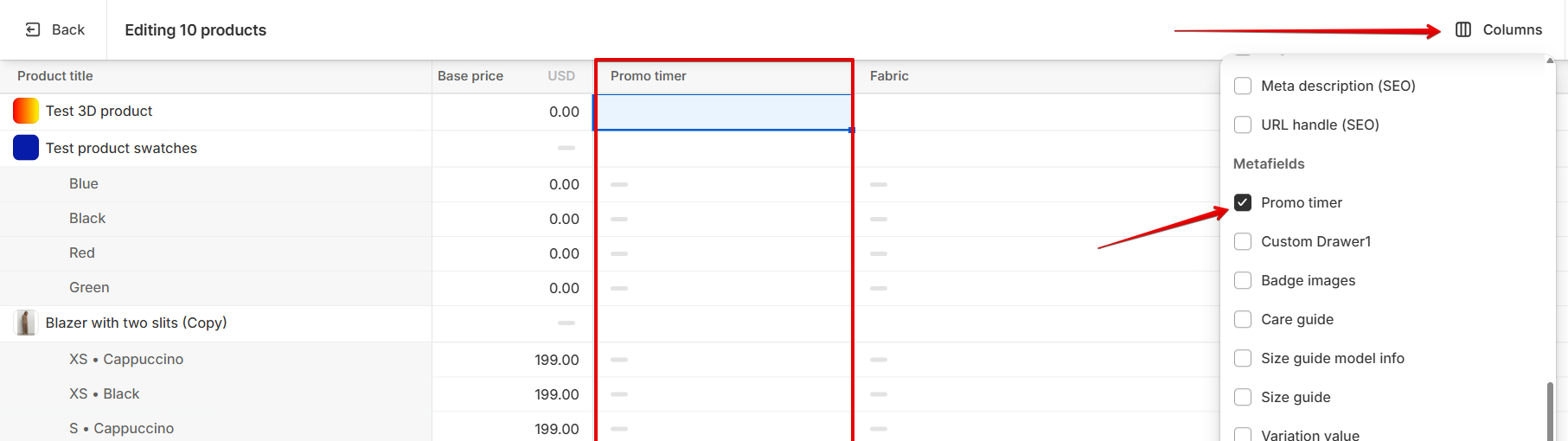
To do this, select the necessary products in the admin panel and click “Bulk edit.”
In the window that opens, click “Columns” and find the name of the metafield that stores the promotion end date. Check it - this will add a new column to the table.
Then, enter the date for one product and drag it down to apply it to all products in the list.
If the "Quick view" feature is enabled in your store, navigate to the Theme settings -> Quick view, and enable the Countdown timer option.