
Set up Drawers <> Ultra
On this page:
Display a drawer with unique content for each product (metafields) -> Follow.
Custom drawer 1 and 2.
These drawers can display only pages with content.
Step 1: Create a Page
Navigate to the Shopify admin -> Online store -> Pages and create a new page. Fill in the title and the content fields. Ensure that Visibility is set to Visible.

Step 2: Add the Page to the drawer field
Navigate to the Theme editor -> Product page -> Product template -> Drawers, and connect the page we just created to the Drawer content field.

Custom drawer 3 and 4.
This is a text drawer. You only need to write the needed next into the "Drawer content" field.

Display unique drawer content for each product in the Custom drawer 1 and 2 (in our example, it is the "Care guide")
Step 1: Create a product metafield
Navigate to the Shopify admin -> Settings -> Metafields and metaobjects -> Product, click on the "Add definition button."
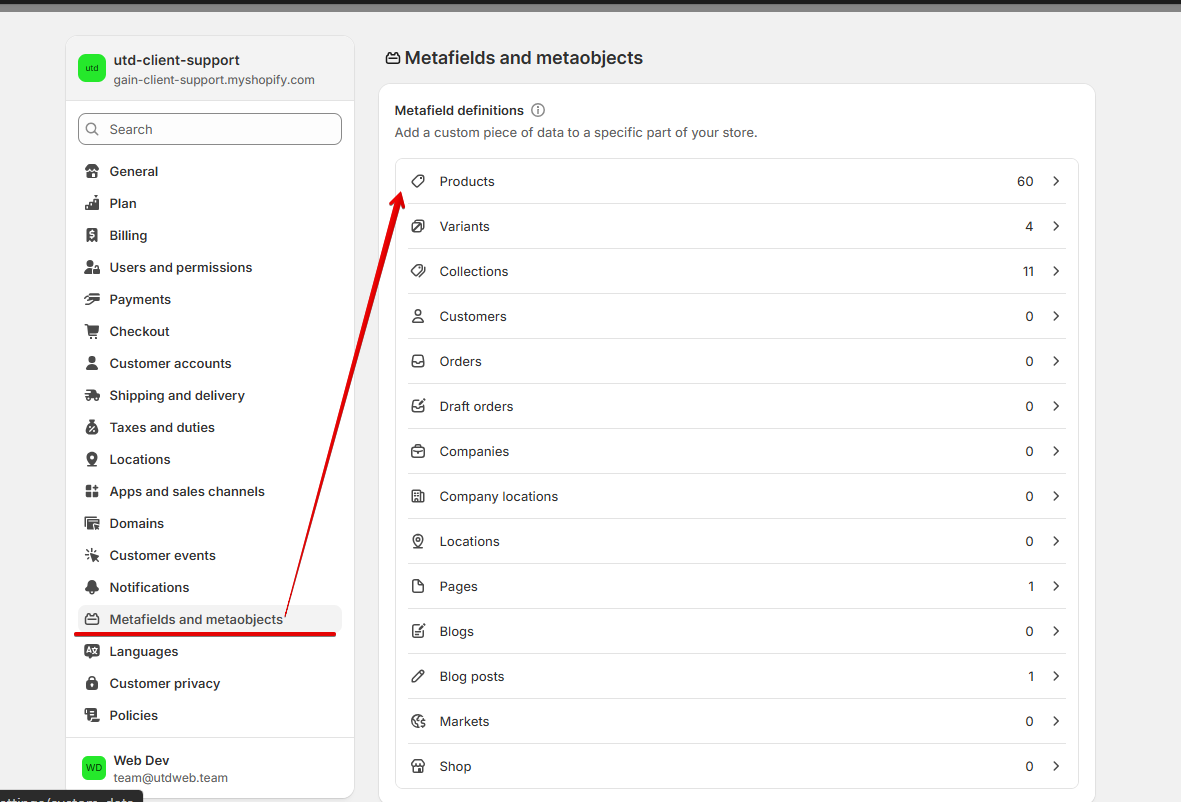
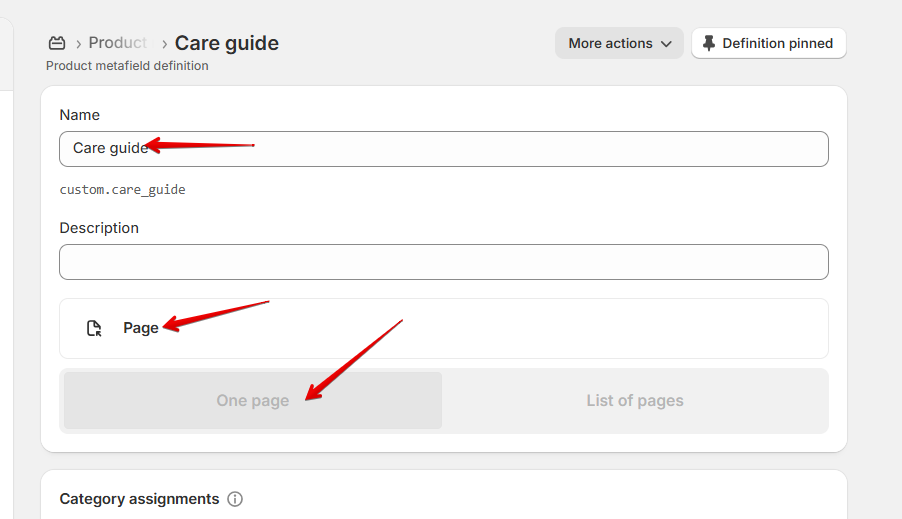
Fill in the Name field with the name of its metafield (in our example, it is a Care guide), select the metafield type as Page, and check the One page value.
Step 2: Create a Page and add the content
Navigate to the Shopify admin -> Online store -> Pages and create a new page. Fill in the title and the content fields.
Note: You can create as many pages as you need.
Step 3: Add page to the Metafield
Navigate to the Products in the Shopify admin and open the specific product. Scroll down to the Product metafields block, find the metafield we created earlier, and add the page.
Please repeat this step for each product where you would like to display this content.

Also, if you have many products to which you need to connect the page to the metafield, you can do this through Bulk Edit.
For this, please select all needed products in the admin panel and click on the "Bulk edit" button.

In the opened window, in the top right corner, click on the "Columns" button. In the dropdown, find the name of your metafield or start writing its name in the search field. Select the needed metafield and close this dropdown.

This action will add the column with that metafield to your table. Now, scroll horizontally until you find this column. Add the needed page to the first product and then drag this cell all the way down the column so that the page is added to all other products as well.

Step 4: Connect the metafield to the drawer content in the product template.
Navigate to the Product page in the theme customizer, enter the Drawers settings, click on the "Connect dynamic source" button (1), ensure that you are in the correct directory - Template > Product (2), and then select the metafield name (3) from the list.

Display unique content in the Custom drawer 3 and 4
Step 1: Create a product metafield.
Follow the steps described above - click here.
Enter your preferred name (e.g., Custom drawer), select the metafield type as "One" and "Multi-line text".

Step 2: Add content to the metafield.
Navigate to the Products in the Shopify admin and open the specific product. Scroll down to the Product metafields block, find the metafield we created earlier, and write the needed text.

Note: You can also add the text via "Bulk edit".
Step 3: Connect the metafield to the Custom drawer
Navigate to the Product page in the theme editor, open the Drawers settings, click Connect dynamic source (1), ensure that you are in theTemplate > Product directive (2), find the metafield in the list (3), and click it to Connect.
