
How to delete templates
If you would like to delete a template, this could be done only by deleting the specific file from the theme files.
To do so, please follow the steps.
-
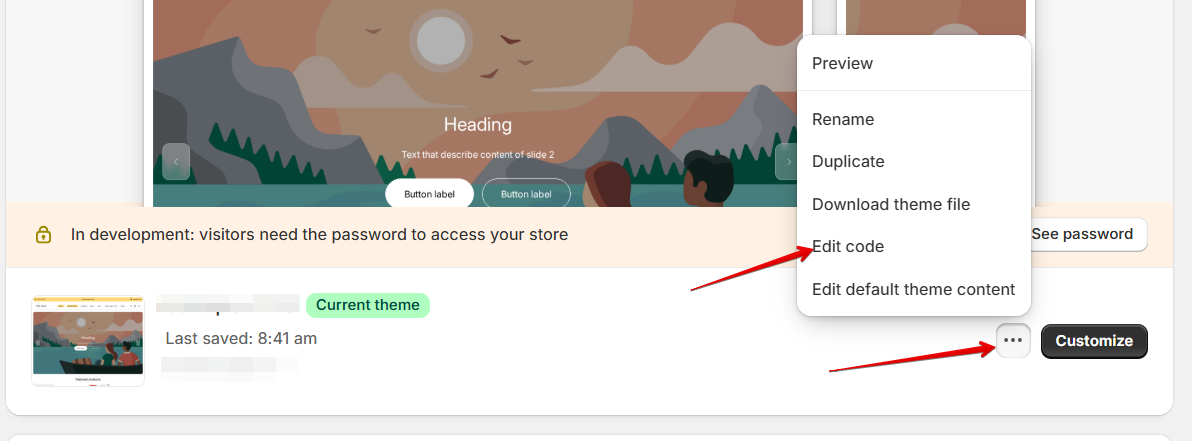
Go to the Admin Panel -> Online Store -> click on ••• near the theme -> select Edit code
- Using the shortcut (Ctrl + P / Cmd + P), open the search panel and write the name of the template you want to delete. After that, you will see the file with the "
.json" extension and "page." prefix.
Note: the prefix depends on the template you want to delete: page. , product. , or collection.
The screenshot below illustrates each case.

- Click the Right mouse button on the theme file and click the "Delete Permanently" option. After that, confirm the action.
