
Set up product labels (badges)
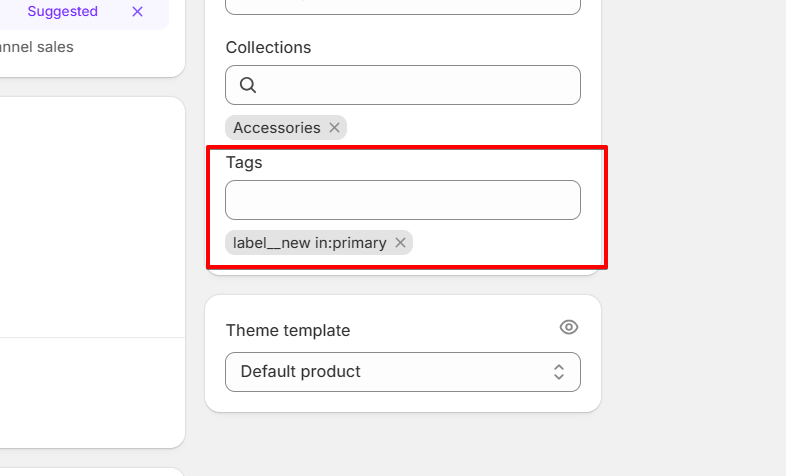
Product labels are added as a product tag in the Product settings of your admin panel.
To create a tag, go to the specific product in the Admin panel and add a tag with the following format: label__new in
The tag should consist of the prefix label__ (with two underscores) followed by the label name, for example: label__new.
You can also not add the modifier - :primapy or :secondary. This is an optional parameter.
Modifiers determine the styles applied to the label, which you can adjust in the Theme settings -> Product, or in the Theme settings -> Product labels. If the modifier is not added, the "Base" color settings will be applied.
If you have a lot of products where you would like to display specific badges, you can create and add them to all the needed products immediately.
To do so, in the Admin panel, select all the needed products and click on the ••• in the toolbar. Then, in the dropdown, find the "Add tags" option.

In the opened window, you can find all existing tags in your store. You can find the needed one and "check" it. If the required tag is not listed, you can type it into the search field and click “Add tag.” This will create a new tag, and you can immediately apply it to all selected products.
